Sent a message to the wrong person? Perhaps autocorrect changed your words, or you replied before thinking clearly.
That sudden feeling of panic is familiar. Fortunately, learning how to unsend a message on iPhone takes only a few seconds.
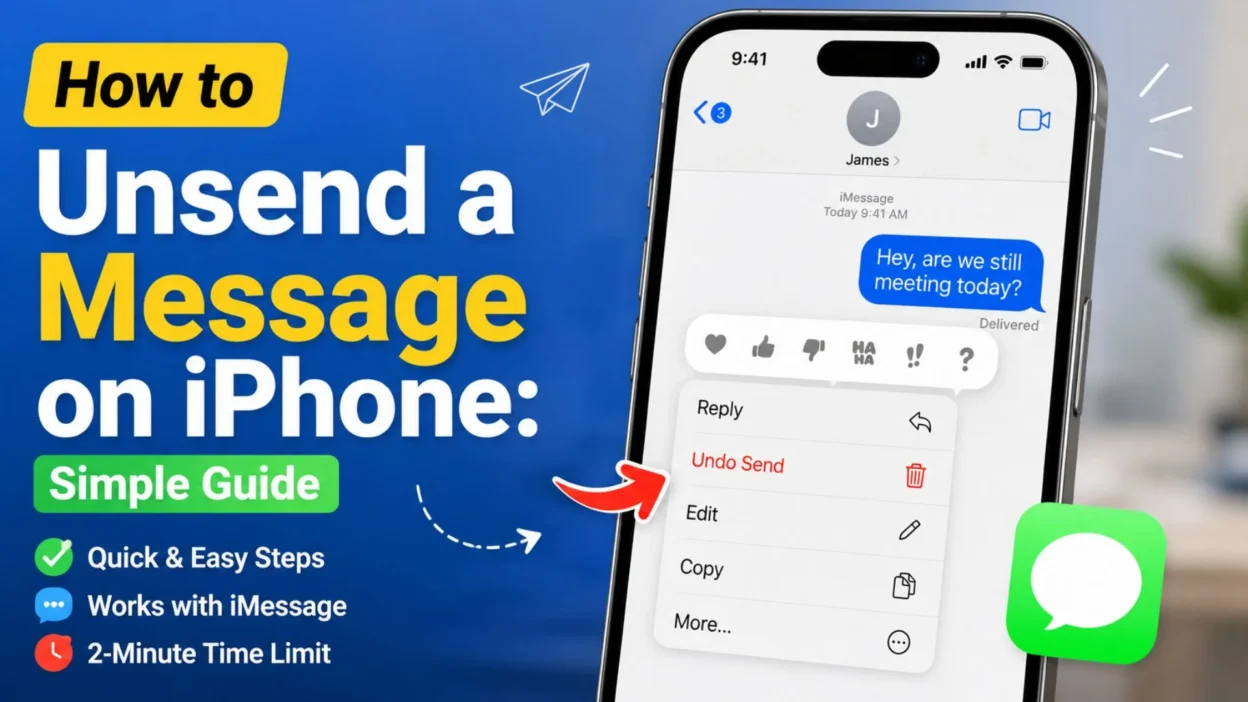
Apple lets you recall a recently sent iMessage through the Undo Send option. However, you must act within two minutes. The feature requires iOS 16 or later.
The basic process is simple:
- 📱 Open the Messages app.
- Choose the relevant conversation.
- Touch and hold the sent message.
- Tap Undo Send.
The message then disappears from the conversation. Still, a notice appears to show that you unsent a message.
This guide explains each step clearly. It also covers common problems, compatibility limits, and the difference between deleting and unsending.
Can You Unsend a Message on an iPhone?
Yes, you can unsend a message through Apple’s Messages app. However, the feature works only for eligible iMessages.
You have up to two minutes after sending the message. Once that period ends, the Undo Send option will no longer appear.
In addition, both people should use compatible Apple software. Apple supports the feature through:
- iOS 16 or later
- iPadOS 16.1 or later
- macOS Ventura or later
When the recipient uses older software, they may still see the original message. Therefore, unsending does not always guarantee complete removal from every older device.
Which Messages Can Be Unsent?
The Undo Send feature works with iMessage. However, standard SMS, MMS, and RCS messages cannot normally be unsent.
This difference matters because the Messages app supports several message types.
An iMessage travels through Apple’s messaging system. Meanwhile, SMS, MMS, and RCS messages may use your carrier or another messaging standard.
So, even though every message appears inside one app, each message does not offer the same controls.
“Act quickly after noticing a mistake because the unsend window lasts only two minutes.”
How to Unsend a Message on iPhone Step by Step
The following steps work in the Messages app on a supported iPhone.
Step 1: Open the Messages App
First, open the Messages app from your Home Screen or App Library.
Next, find the conversation containing the message you want to recall.
Avoid leaving the message for later. Because the time limit is short, every second matters.
Step 2: Find the Sent Message
Scroll to the message you sent accidentally.
Make sure you select your own message. You cannot unsend a message that another person sent.
Step 3: Touch and Hold the Message
Press and hold the message bubble until a menu appears.
Do not tap it quickly. Instead, hold your finger on the bubble for a moment.
Several options may appear, depending on the message and its age.
Step 4: Tap Undo Send
Choose Undo Send from the menu.
The message will disappear. Then, a note confirming that you unsent it will appear in both conversation transcripts.
The full process is:
- Open Messages
- Select the conversation
- Touch and hold the message
- Tap Undo Send
Apple removes the eligible iMessage from the recipient’s compatible device. However, the recipient can still see that a message was unsent.
What Happens After You Unsend an iMessage?
After you tap Undo Send, the original content disappears from your conversation.
It should also disappear from the recipient’s compatible Apple device. However, both sides receive a small conversation notice confirming the action.
Therefore, the person may know that you recalled something. They simply should not see the original content on a supported device.
Can the Recipient Still See the Message?
Sometimes, yes.
The recipient may still see the original message when:
- Their Apple device uses older software.
- They read the message before you recalled it.
- A notification preview already displayed the content.
- The message was sent as SMS, MMS, or RCS instead of iMessage.
Apple specifically warns that recipients using older versions of iOS, iPadOS, or macOS may still see the original message.
As a result, treat Undo Send as a helpful correction tool rather than a perfect privacy guarantee.
How Much Time Do You Have to Unsend a Message?
You have two minutes from the moment the iMessage is sent.
After two minutes, Apple removes the Undo Send choice. At that point, deleting the message from your iPhone will not remove it from the recipient’s conversation.
For example:
- Sent 30 seconds ago: You can usually unsend it.
- Sent 90 seconds ago: You can still act quickly.
- Sent over two minutes ago: Undo Send is no longer available.
Therefore, check the message immediately after noticing a mistake.
Why Is the Undo Send Option Missing?
Sometimes, pressing a message does not show Undo Send. Several common reasons may explain the problem.
The Two-Minute Limit Has Passed
This is the most likely reason.
Apple allows an iMessage to be unsent for only two minutes. After that limit, you may see other controls, but not Undo Send.
The Message Is Not an iMessage
SMS, MMS, and RCS messages cannot normally be recalled through this feature.
Therefore, the option may remain unavailable even when the message was sent only moments ago.
Your iPhone Software Is Too Old
Undo Send requires iOS 16 or later on the sender’s iPhone.
You can check your software version by opening:
Settings → General → About
You can also look for an available update through:
Settings → General → Software Update
You Selected the Wrong Message
The feature applies only to messages you sent.
If you press a message received from another person, Undo Send will not appear.
Unsend Versus Delete: What Is the Difference?
These actions may sound similar, but they produce different results.
Undo Send
Undo Send attempts to retract an eligible iMessage from both conversation transcripts.
However, you must use it within two minutes. Compatible Apple software is also important.
Delete
Deleting removes the message only from your own iPhone. It does not remove the copy visible to the recipient.
Deleted messages may remain in the Recently Deleted folder for up to 30 days. Still, recovering or permanently deleting them does not change the recipient’s conversation.
Remember this simple difference:
- ↩️ Undo Send: Tries to recall the message for both people.
- 🗑️ Delete: Removes the message only from your device.
A Quick Reminder Before You Panic
Sending the wrong message can feel embarrassing. However, most messaging mistakes are manageable.
First, try Undo Send immediately. If the option is unavailable, consider sending a calm correction.
For example:
“Sorry, that message was meant for someone else. Please ignore it.”
A clear follow-up often works better than a long explanation.
Most importantly, avoid sending several rushed messages. Pause, read the conversation, and respond thoughtfully.
Edit an iPhone Message When You Cannot Unsend It
Sometimes, you notice a mistake after the two-minute unsend period ends. Fortunately, Apple may still let you edit an eligible iMessage.
You can edit a recently sent iMessage up to five times within 15 minutes. The message receives an Edited label after you change it.
Editing works well for:
- ✍️ Correcting spelling mistakes
- Replacing an incorrect name
- Fixing an address or meeting time
- Clarifying confusing wording
- Removing an accidental phrase
- Correcting information before it causes confusion
How to Edit a Sent Message on iPhone
Follow these steps:
- Open the Messages app.
- Select the correct conversation.
- Touch and hold your sent message.
- Tap Edit.
- Change the text.
- Tap the checkmark to save it.
The updated message appears in the conversation. However, both people can tap Edited to view earlier versions. Therefore, editing should not be treated as a way to hide sensitive information.
“Use Edit to correct a mistake, but remember that the previous wording may remain visible in the edit history.”
When Editing Is Better Than Unsending
Unsending may create curiosity because the conversation shows that you removed something.
Editing can feel more natural when the mistake is small. For example, changing “Tuesday” to “Thursday” usually needs no long explanation.
Consider editing when:
- The recipient is correct, but the wording is wrong.
- A typo changes the meaning.
- You shared an incorrect date or time.
- The message needs a short clarification.
- Removing the whole message would seem confusing.
On the other hand, use Undo Send when you contacted the wrong person or shared something accidentally.
What to Do After the Two-Minute Limit
Once two minutes pass, an eligible iMessage can no longer be unsent. Deleting it from your phone will not remove the recipient’s copy.
Still, you have several practical options.
Send a Clear Correction
A short correction often solves the problem quickly.
You could write:
- “Sorry, I sent the wrong information. The correct time is 4:00 p.m.”
- “Please ignore my previous message. It was meant for another conversation.”
- “Autocorrect changed that sentence. Here is what I meant.”
- “I sent that too quickly. Let me explain it more clearly.”
- “That attachment was incorrect. I will send the right one now.”
Keep the response calm. Moreover, avoid sending several rushed explanations because they may create more confusion.
Apologize When Necessary
If the message sounded rude or emotional, acknowledge it honestly.
For example:
“I replied too quickly, and my wording was unfair. I am sorry. Let me explain myself more respectfully.”
A sincere correction cannot erase the original message. However, it can prevent a misunderstanding from becoming worse.
Ask the Recipient to Delete Sensitive Content
If you accidentally shared private information, contact the recipient immediately.
Politely ask them to delete the message and avoid forwarding it. Still, remember that you cannot control screenshots, notification previews, backups, or content already viewed.
For highly sensitive information, take further protective steps. For example, change an exposed password or contact your bank if financial details were shared.
Blue Bubbles Versus Green Bubbles
The message color can help you identify the messaging service being used.
Apple displays iMessages in blue bubbles. SMS, MMS, and RCS messages normally appear in green bubbles.
Blue Message Bubbles
A blue bubble usually means the message was sent through iMessage.
Eligible blue-bubble messages may support:
- ↩️ Undo Send within two minutes
- ✏️ Editing within 15 minutes
- An edit history
- Read receipts when enabled
- Apple messaging features
However, device software and conversation conditions still matter.
Green Message Bubbles
A green bubble may represent SMS, MMS, or RCS.
These messages generally cannot be unsent through Apple’s Undo Send feature. Apple also states that SMS, MMS, and RCS messages normally cannot be edited.
Therefore, pressing a recent green message may not show the options you expect.
A Group-Chat Editing Exception
Apple documents a limited exception for editing. An SMS, MMS, or RCS message may support editing inside a group conversation when at least one other participant uses iMessage.
However, this exception does not make those messages eligible for Undo Send.
Because group-message behavior can become complicated, check the available menu instead of relying only on bubble color.
Can You Unsend a Message After Someone Reads It?
You can still tap Undo Send within the two-minute period, even if the recipient opened the conversation.
However, unsending cannot erase what the person already read or saw in a notification preview.
The message may disappear from a compatible conversation afterward. Still, the recipient may remember its contents.
Therefore, act quickly and follow up when the message requires clarification.
Does the Recipient Know You Unsent Something?
Yes. Apple places a note in both conversation transcripts showing that a message was unsent.
The original message should disappear on compatible devices. However, the notice remains visible.
This means the recipient may ask what you removed.
You can reply simply:
- “It contained a typo, so I removed it.”
- “I sent it to the wrong chat.”
- “The information was outdated.”
- “I decided to phrase it more clearly.”
There is usually no need to create an elaborate explanation.
Can You Recover a Message After Using Undo Send?
No. Apple states that a message removed through Undo Send is permanently deleted and cannot be recovered through Recently Deleted.
Therefore, read the message carefully before unsending it. Copy any information you still need first, when possible.
This rule differs from manually deleting a message.
How to Recover a Manually Deleted Message
Messages deleted from your own conversation may remain recoverable for a limited period.
Apple’s current iPhone guide says deleted messages can remain in Recently Deleted for up to 30 days. A separate Apple support article describes recovery for messages deleted within roughly 30 to 40 days. Availability may depend on the software version and deletion date.
To check Recently Deleted:
- Open Messages.
- Return to the conversation list.
- Tap Edit or Filters, depending on your iOS version.
- Choose Show Recently Deleted or Recently Deleted.
- Select the conversation.
- Tap Recover.
Recovering a deleted message restores it to your devices where Messages in iCloud is enabled. However, it does not change or remove anything from the recipient’s device.
Do Not Confuse Message Undo Send With Mail Undo Send
The Messages and Mail apps use different time limits.
In Messages, you can unsend an eligible iMessage for up to two minutes. In Apple Mail, the default Undo Send opportunity lasts 10 seconds. Mail also lets you choose a longer sending delay in its settings.
To change the email delay:
Settings → Apps → Mail → Undo Send Delay
This Mail setting does not extend the two-minute iMessage limit.
Common Unsend Mistakes to Avoid
Before relying on Undo Send, remember these points:
- ⏱️ Do not wait longer than two minutes.
- 🟢 Do not assume every green message can be recalled.
- 🗑️ Do not confuse deleting with unsending.
- 👀 Do not assume the recipient never saw the content.
- 📲 Do not ignore older-device compatibility.
- ✏️ Do not forget that edited versions may remain viewable.
- 🔐 Do not rely on unsending alone after sharing sensitive data.
Undo Send is useful, but it is not a complete privacy tool. Therefore, checking the recipient and rereading the message remains the safest habit.
How to Fix Undo Send When It Is Not Working
The Undo Send option usually appears after you press and hold an eligible iMessage. However, several issues can prevent it from appearing.
Confirm That Two Minutes Have Not Passed
First, check how recently you sent the message.
Apple only allows you to unsend an iMessage within two minutes. Once that window closes, the option disappears permanently.
At that point, you can:
- ✏️ Edit the message within the allowed editing period.
- 💬 Send a clear correction.
- 🙏 Apologize when the wording caused harm.
- 🔐 Protect any private information you exposed.
Check Whether It Is an iMessage
Undo Send works with iMessage. SMS, MMS, and RCS messages cannot normally be recalled through this feature.
Look at the message bubble:
- 🔵 Blue usually indicates iMessage.
- 🟢 Green indicates SMS, MMS, or RCS.
Apple sends iMessages through Wi-Fi or cellular data. Other text-message types use different systems and may depend on your carrier.
Update Your iPhone
Older software may not support Undo Send.
Check for available updates through:
Settings → General → Software Update
Keeping your iPhone updated also provides current features, security improvements, and bug fixes.
Check Your Internet Connection
iMessage requires Wi-Fi or cellular data.
Therefore, check your connection when Messages is behaving unexpectedly. You can also restart the iPhone and try again. Apple recommends both steps when messaging features fail.
However, reconnecting will not restore an expired two-minute window.
Review Your iMessage Settings
Open:
Settings → Apps → Messages
Then, confirm that iMessage is turned on.
You can also open Send & Receive to check whether your phone number or email address is selected correctly. Apple recommends reviewing these settings when messages appear in unexpected threads or send as green bubbles.
How to Handle an Accidentally Sent Private Message
Unsending can help, but it does not guarantee that nobody saw the content.
The recipient may have:
- Read the message before you removed it.
- Seen its contents in a notification.
- Used older Apple software.
- Taken a screenshot.
- Copied or forwarded the information.
Apple warns that recipients using older compatible-system versions may still see the original message.
Therefore, take immediate action when the message contains sensitive details.
If You Shared a Password
Change the password immediately.
Also, sign out of unfamiliar devices and enable two-factor authentication when the service supports it.
Do not depend only on the recipient deleting the message.
If You Shared Banking Information
Contact your bank when the message contains account details, card information, or security codes.
In addition, monitor your account for unfamiliar activity.
If You Shared a Private Photo or Document
Ask the recipient to delete it without saving, forwarding, or sharing it.
Keep the message polite but direct:
“I sent that file accidentally. Please delete it without saving or forwarding it.”
Although you cannot fully control the receiver’s actions, a quick request may reduce further sharing.
If You Messaged the Wrong Person
Send a brief correction:
“Sorry, that message was intended for another conversation. Please disregard it.”
Avoid adding unnecessary details. A calm sentence often resolves the situation.
How to Prevent Messaging Mistakes on iPhone
Undo Send is useful. Still, preventing mistakes feels much easier than correcting them.
Check the Recipient First
Before typing, look at the name and profile image at the top of the conversation.
This small habit helps prevent messages from going into the wrong personal or group chat.
Pause Before Sending Emotional Messages
Anger and frustration can make words harsher than intended.
Therefore, write the message, pause briefly, and read it again. Ask yourself:
- Is this the right person?
- Is the message clear?
- Could the wording sound disrespectful?
- Should I wait before replying?
- Am I sharing private information?
A short pause can protect an important relationship.
Review Attachments Carefully
Photos and documents are easy to select accidentally.
Before tapping Send:
- 📷 Open the selected image.
- 📄 Confirm the document name.
- 👥 Check every group-chat participant.
- 🔒 Remove visible private information.
- 🔍 Zoom in when necessary.
Avoid Sending Important Information Too Quickly
Meeting times, addresses, account numbers, and travel details deserve a second review.
For example, check whether “6:00” should actually say “8:00.” One small error can affect several people.
Use Drafts for Sensitive Conversations
Write an emotional or professional response in Notes first.
Then, review the message when you feel calmer. Finally, copy it into Messages after confirming the wording.
This method reduces impulsive replies and gives you more control.
A Quick iPhone Message Safety Checklist
Before sending an important message, check:
- ✅ The recipient is correct.
- ✅ The message says what you intended.
- ✅ Names, dates, and times are accurate.
- ✅ The attachment is correct.
- ✅ No password or security code appears.
- ✅ The tone feels respectful.
- ✅ You are ready for the recipient to read it.
These checks only take a few seconds. However, they can prevent stress later.
Frequently Asked Questions
Can you unsend a message on an iPhone?
Yes. Press and hold a recently sent iMessage, then tap Undo Send. You must do this within two minutes.
Can you unsend a green text message?
No. Green SMS, MMS, and RCS messages cannot normally be unsent through Apple’s Undo Send feature.
Can someone see a message before I unsend it?
Yes. The recipient may read the message or see its notification before you recall it.
Undo Send cannot erase information someone has already viewed.
Will the recipient know that I unsent a message?
Yes. A notice appears in both conversations showing that a message was unsent.
Can I unsend an iMessage after two minutes?
No. Apple limits Undo Send to two minutes after sending. Afterward, you may edit an eligible iMessage within 15 minutes.
Can I recover an unsent iMessage?
No. A message removed through Undo Send is permanently deleted and cannot be restored through Recently Deleted.
Can I recover a message I deleted normally?
Yes, in some cases. Messages deleted manually may remain recoverable in Recently Deleted for around 30 to 40 days. Recovering them only affects your Apple devices, not the recipient’s copy.
Conclusion
Learning how to unsend a message on iPhone can save you from an awkward or stressful situation.
Open the conversation, press and hold the recent iMessage, and choose Undo Send. Most importantly, act within two minutes.
However, remember the feature’s limits. It does not normally work with green SMS, MMS, or RCS messages. In addition, someone may read a message before you remove it.
When unsending is no longer possible, stay calm. Edit the message, send a correction, or offer an honest apology.
Technology can help correct mistakes, but thoughtful communication still matters most. Therefore, pause before sending important words and review sensitive information carefully.
One accidental message does not need to become a major problem. A quick action and a respectful response can often put things right.