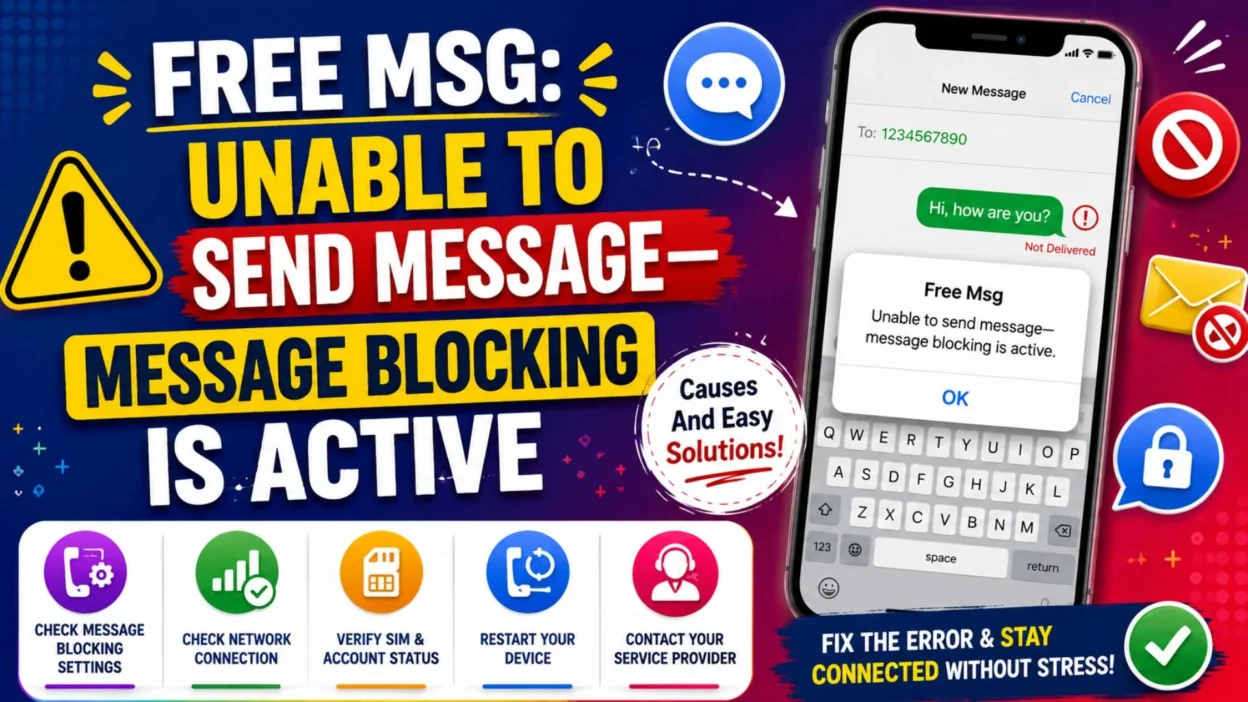
Seeing “Free Msg: Unable to send message—Message blocking is active” can feel confusing. Your phone may have worked normally moments earlier. Then, suddenly, one text or every text refuses to send.
The wording often makes people believe they accidentally blocked someone. However, the problem may involve your mobile account, SIM, messaging settings, service plan, or the recipient’s line.
Fortunately, this error does not always mean something serious. In many cases, a few simple checks reveal the cause.
“Message blocking is active” usually means the mobile network cannot deliver your text because a restriction or configuration problem is affecting messaging.
Before changing several settings, first identify the pattern. Does the error appear with one contact, several people, or everyone? That answer can save time.
What Does “Message Blocking Is Active” Mean?
The message indicates that your SMS, MMS, or carrier-based messaging service cannot complete the request.
Although the phrase includes “blocking,” it does not always mean you manually blocked the recipient. A carrier restriction, account feature, inactive line, payment issue, or recipient-side setting may also prevent delivery.
T-Mobile’s troubleshooting guidance says users should check message-blocking features on both the sender’s and recipient’s accounts. It also notes that an error affecting one specific person may relate to blocking on that person’s line.
Therefore, avoid assuming that your phone is broken. First, determine whether the issue comes from:
- Your mobile account
- Your device settings
- Your SIM or eSIM
- The messaging application
- The recipient’s number or service
- A temporary carrier problem
Once you identify the likely area, the solution becomes easier.
Why Does This Error Appear?
Several different problems can trigger the same warning. As a result, there is no single fix that works for every phone.
Message Blocking Is Enabled on the Account
Some mobile plans include account-level controls that block certain messages. These controls may restrict:
- All outgoing text messages
- Premium-rate messages
- Short-code messages
- International messages
- Messages to selected numbers
- Messaging on a child or family line
An account owner may have enabled the restriction intentionally. However, a carrier representative may also need to remove it after a plan change.
For example, family controls can prevent messaging even when no number appears in your phone’s blocked-contact list. T-Mobile advises checking both message-blocking settings and family allowances.
Your Plan or Balance Does Not Support Texting
A prepaid account may stop sending messages when its balance expires. Likewise, a newly changed plan may not include the required messaging service.
Google recommends checking whether your plan or available credit supports sending and receiving messages. It also advises confirming that your carrier supports SMS, MMS, or RCS.
Therefore, review your account before resetting the phone. A payment or plan issue cannot usually be solved through device settings.
The Recipient’s Number Is Blocked
You may have blocked the contact accidentally. Alternatively, the recipient may have a restriction that prevents your messages from reaching them.
Check the blocked-numbers list inside your phone and messaging application. Also, confirm that the number is correct.
If calls work but texts fail, do not rule out blocking immediately. Calling and messaging can use different services and restrictions.
The Phone Number Is Incorrect
A missing digit, outdated contact entry, or incorrect country code can stop a message from sending.
Google recommends deleting and adding the contact again when the problem affects one person. It also advises checking the full number and adding the correct country code when necessary.
For example, a number saved without the correct international prefix may fail after you change networks or travel abroad.
Your SIM or eSIM Is Not Working Correctly
Text messaging depends on an active mobile line. Therefore, a loose SIM, disabled eSIM, or incorrectly selected line can create delivery problems.
Google advises users to make sure their SIM card is inserted correctly. Meanwhile, Apple recommends confirming that the intended phone line is turned on, especially on dual-SIM devices.
This cause becomes more likely after:
- Moving to a new phone
- Replacing a SIM
- Activating an eSIM
- Changing carriers
- Using two mobile lines
- Updating the device
You Have Weak or No Cellular Signal
SMS usually needs access to a cellular network. Consequently, texts may fail when your phone has no service or very weak coverage.
Google recommends checking the signal and turning off Airplane Mode. Apple also advises checking the network connection when messages show a delivery failure.
Move to an area with stronger reception. Then, restart the phone and try again.
Google Messages Is Not the Default App
On Android, messaging problems may appear when another application controls SMS.
Google recommends setting Google Messages as the default texting application. In addition, the company advises updating the app to its latest available version.
Third-party messaging apps can sometimes create conflicts. Therefore, temporarily return to the phone’s standard messaging app while troubleshooting.
RCS, SMS, or iMessage Is Misconfigured
Modern phones may switch among RCS, SMS, MMS, and iMessage. However, a registration problem can prevent that switch from working correctly.
People moving from iPhone to Android should deactivate iMessage for their phone number. Similarly, Android users changing devices may need to disable RCS on the old phone.
Google specifically recommends turning off iMessage after leaving an iPhone. It also notes that users changing Android messaging setups may need to disable old RCS connections.
On an iPhone, Apple recommends checking the selected number under Messages settings. It also advises contacting the carrier when SMS, MMS, or RCS still fails.
First Identify Who You Cannot Text
Before trying every possible fix, perform three quick tests.
Test One: Message Another Contact
Send a simple text to someone else.
If that message sends normally, the problem probably affects one contact. Check:
- The saved number
- The country code
- Your blocked list
- The recipient’s service
- A contact-specific conversation error
However, if every message fails, focus on your account, plan, SIM, signal, or carrier settings.
Test Two: Make a Phone Call
Call the same person.
A successful call confirms that your line has some network access. Still, it does not prove that SMS service works correctly.
If both calling and texting fail, the line may be inactive or experiencing a broader service problem.
Test Three: Send a Plain Text
Avoid sending photos, videos, group messages, links, or emojis during the test.
Instead, send a short message such as:
“Hi, this is a test.”
If plain text works but pictures fail, the problem may involve MMS, mobile data, or APN settings. Google recommends checking the data connection and resetting APN settings when MMS fails.
Quick Checks Before Changing Advanced Settings
Complete these simple steps first:
- Restart your phone.
- Turn Airplane Mode on, then off.
- Confirm that your mobile line is active.
- Check your prepaid balance or bill.
- Verify the recipient’s full number.
- Remove the contact from your blocked list.
- Update your messaging application.
- Confirm that you have cellular signal.
- Send a plain text to another person.
- Ask the recipient whether they can text you.
These checks solve many common messaging problems. Moreover, they help identify whether the failure affects one conversation or the entire line.
Avoid repeatedly resetting the phone before checking your carrier account. If message blocking exists at the network level, changing device settings will not remove it.
The most important first step is simple: find out whether the error affects one person or every person.
How to Fix “Message Blocking Is Active”
Start with the easiest steps before changing advanced network settings. In many cases, the issue comes from a blocked contact, inactive line, account restriction, or incorrect messaging setup.
Complete each step in order. After every change, send a short test message.
Restart Your Phone and Reconnect to the Network
First, restart your phone. This simple action can refresh the device’s connection to the mobile network.
Next, turn Airplane Mode on for about 20 seconds. Then, turn it off and wait for the signal bars to return.
Make sure your phone displays a cellular signal. SMS normally requires a mobile network connection, while MMS and RCS may also require mobile data or Wi-Fi.
After reconnecting, send a plain text without a photo, link, or attachment.
Check Your Mobile Account and Texting Plan
If every outgoing message fails, review your mobile account.
Confirm that:
- Your phone line remains active
- Your bill is paid
- Your prepaid balance has not expired
- Your plan includes SMS or MMS
- The carrier has not suspended the line
- The correct SIM or eSIM appears on the account
Google advises checking whether your carrier supports the messaging type and whether your plan has enough credit. T-Mobile also states that prepaid accounts need an available balance for text and picture messages.
Account-level problems usually require assistance from the carrier. Resetting your phone will not remove a billing suspension or network restriction.
Remove Account-Level Message Blocking
Message blocking can exist on the carrier account even when your phone shows no blocked contacts.
An account owner may have enabled:
- Text and picture message blocking
- Family or parental restrictions
- Premium-message blocking
- International message restrictions
- Blocks against commercial or short-code messages
- Restrictions on one particular mobile line
For example, T-Mobile’s message-blocking feature can block chargeable incoming and outgoing SMS and MMS. Family controls may also restrict which numbers a line can contact.
Open your carrier’s application or website and review the line’s blocking settings. If you cannot find them, contact customer support.
Ask the representative:
“Please check whether SMS, MMS, short-code, premium-message, or account-level message blocking is enabled on my line.”
Also ask them to confirm that your SMS service has been correctly provisioned.
Unblock the Contact on Android
When the error affects only one person, check whether their number appears in your blocked or spam list.
On many Android phones:
- Open Google Messages.
- Tap your profile picture or menu icon.
- Open Spam & blocked.
- Select the conversation or number.
- Tap Unblock.
The exact wording may differ by device brand.
Also open the Phone or Contacts application and review its blocked-number settings. Google specifically recommends checking whether the affected contact is blocked.
After unblocking the number, delete the failed message and send a new one.
Unblock the Contact on iPhone
On newer iPhones, you can usually review blocked contacts through:
- Open Settings.
- Tap Apps.
- Select Messages or Phone.
- Open Blocked Contacts.
- Remove the relevant number.
Menu names can vary slightly by iOS version.
Next, open the contact and verify that the saved number is correct. Apple recommends confirming the recipient’s phone number or email address when messages fail.
Delete and Add the Contact Again
A saved contact may contain an outdated number, missing country code, or incorrect formatting.
Delete the contact and create it again. Enter the full phone number carefully.
For US numbers, include +1 when international formatting is necessary. For other countries, use the correct country code.
Google recommends deleting and re-adding a contact, verifying the number, and checking whether a country code is required.
Then, start a completely new conversation instead of replying inside the old thread.
Set Google Messages as the Default SMS App
Android phones may contain several messaging applications. However, only one should control standard SMS messages.
To check the default application:
- Open Settings.
- Tap Apps.
- Choose Default apps.
- Tap SMS app.
- Select Google Messages or your carrier-supported messaging app.
Next, update Google Messages through the Play Store.
Google recommends using the latest app version and setting Google Messages as the default texting application.
Temporarily disable or uninstall recently downloaded SMS applications if the problem began after installing one.
Check the SIM or eSIM on Android
Make sure the physical SIM sits correctly inside the phone. If you use an eSIM, confirm that the mobile line remains enabled.
On dual-SIM Android phones, verify that the correct line handles SMS:
- Open Settings.
- Tap Network & internet, Connections, or SIM manager.
- Find the preferred SIM setting.
- Select the correct line for text messages.
Google recommends checking that the SIM is inserted properly.
If possible, turn the SIM line off and back on. Then, restart the phone.
Check the Active Line on iPhone
Dual-SIM and eSIM users should confirm that the intended phone line is active.
On recent iPhones:
- Open Settings.
- Tap Cellular.
- Select the correct mobile line.
- Confirm that Turn On This Line is enabled.
Apple also recommends selecting the intended phone number under Settings → Apps → Messages → Send & Receive.
If the wrong number appears, choose the correct line and start a new conversation.
Fix iMessage Settings on iPhone
When a blue iMessage fails, tap the red exclamation mark beside it.
Then:
- Tap Try Again.
- If it still fails, tap Send as Text Message.
You can also open Settings → Apps → Messages and enable Send as Text Message. This allows the iPhone to try SMS when iMessage is unavailable.
Next, turn iMessage off and back on:
- Open Settings.
- Tap Apps.
- Select Messages.
- Turn iMessage off.
- Restart the iPhone.
- Turn iMessage on again.
Finally, open Send & Receive and confirm that your phone number has a check mark.
Fix RCS Chats on Android
RCS can occasionally become stuck after changing phones, SIM cards, carriers, or messaging applications.
Open Google Messages and follow these steps:
- Tap your profile picture.
- Open Messages settings.
- Select RCS chats.
- Check the connection status.
- Turn RCS off.
- Restart the phone.
- Turn RCS on again.
If you recently changed messaging applications, Google notes that you may need to turn off the old RCS connection. RCS may also remain unavailable when the carrier does not support it.
While testing, choose the option to resend an undelivered message as SMS when available.
Deregister iMessage After Switching to Android
A person moving from iPhone to Android may stop receiving some texts because their number remains connected to iMessage.
Turn off iMessage on the old iPhone before removing the SIM:
- Open Settings.
- Tap Apps.
- Select Messages.
- Turn off iMessage.
Also turn off FaceTime.
Google and Apple both recommend deactivating iMessage when moving from an iPhone to a non-Apple phone.
Fix Picture and Group Messages
When normal texts work but photos or group messages fail, the issue probably involves MMS.
On Android:
- Turn on mobile data.
- Confirm that your plan includes MMS.
- Send one small picture to one recipient.
- Reset the APN settings to their defaults.
- Check the group messaging option in Google Messages.
Google recommends confirming a data connection and resetting APN settings when MMS fails.
On iPhone, check Settings → Apps → Messages. Enable the available SMS, group messaging, or picture-message options supported by your carrier.
Large attachments may also fail because carriers can apply size limits. Apple recommends trying a smaller or lower-quality image when full-size files do not send.
Fix Problems with Verification Codes and Short Codes
Banks, delivery companies, social platforms, and other services often send codes from short numbers.
If ordinary texts work but verification codes do not, your account may block commercial, premium, or short-code messages.
On some Android devices, check:
- Open Settings.
- Tap Apps.
- Select Special app access.
- Tap Premium SMS access.
- Allow the required messaging application when appropriate.
Google explains that Android settings may block premium SMS permissions. T-Mobile also warns that account blocks can prevent security codes, appointment reminders, and other commercial messages.
Only allow premium SMS for trusted services because charges may apply.
After each fix, send a new plain-text message. Testing one change at a time makes the real cause easier to identify.
Advanced Fixes for Message Blocking Errors
If the basic steps did not work, the problem may involve your network profile, number transfer, device software, or carrier provisioning.
At this stage, test one change at a time. Otherwise, you may not know which action solved the problem.
Update Your Phone and Messaging App
Outdated software can affect network registration and messaging features.
On Android, update:
- Google Messages
- Carrier Services, when installed
- Your phone’s operating system
- Any available carrier settings
Google recommends using the latest Google Messages version. It also advises setting the app as your default texting application.
On iPhone, open Settings → General → Software Update. Install an available iOS update before changing advanced settings.
Apple also recommends updating iOS when messaging problems begin after setting up a new device.
After updating, restart the phone and send a plain text.
Reset Your Network Settings
A network reset can repair incorrect mobile, Wi-Fi, or carrier-related configurations.
However, it may remove saved network preferences. Therefore, make sure you know your Wi-Fi passwords before continuing.
On many Android phones:
- Open Settings.
- Tap System or General management.
- Choose Reset options.
- Select Reset mobile network settings or a similar option.
- Confirm the reset.
- Restart the device.
The menu varies between Samsung, Google Pixel, Motorola, and other Android phones.
On iPhone:
- Open Settings.
- Tap General.
- Choose Transfer or Reset iPhone.
- Tap Reset.
- Select Reset Network Settings.
- Enter your passcode and confirm.
Apple explains that resetting settings can return network-related configurations to their defaults without erasing personal content.
Meanwhile, Verizon recommends restarting the device or resetting network settings when normal texting checks do not solve the issue.
Check for a Carrier Outage
Sometimes, the phone and account work correctly, but the carrier’s messaging service has a temporary problem.
Check whether:
- Calls are also failing
- Mobile data is unusually slow
- Other people on the same carrier have problems
- Your carrier reports an outage
- The issue began suddenly without any setting changes
If an outage exists, avoid repeatedly resetting the phone. Instead, wait until the carrier restores service.
You can still use internet-based apps when Wi-Fi or mobile data works. However, WhatsApp, Signal, Messenger, and similar apps do not repair SMS service.
Consider a Recent Number Transfer
Text delivery may not work normally immediately after moving your number to another carrier.
The voice service may activate before every messaging route updates. As a result, calls could work while some texts still fail.
Verizon notes that message delivery issues can continue for a period after switching carriers, depending on the previous provider and transfer status.
Contact the new carrier and ask them to confirm:
- The number transfer is complete
- SMS routing has updated
- The SIM or eSIM is fully activated
- Your mobile number matches the SIM profile
- No messaging restriction remains on the line
Check Spam and Automated Messaging Restrictions
Carriers use filtering systems to reduce fraudulent or unwanted texts. Therefore, unusual messaging activity may trigger restrictions.
This can happen when a message:
- Goes to many recipients
- Contains suspicious links
- Repeats the same promotional wording
- Targets a large distribution list
- Resembles automated or commercial traffic
Verizon warns that messages with many recipients or suspicious links may be identified as spam and fail to send.
If you are sending business or promotional messages, use a proper business-messaging service. Personal mobile numbers may not support high-volume campaigns.
When to Contact Your Mobile Carrier
Contact your carrier when:
- Every SMS message fails
- Calls work, but texts never send
- Your balance and plan appear active
- The error continues after restarting
- Your account may contain a messaging block
- You recently changed your plan, SIM, or carrier
- Verification codes do not arrive
- Your number transfer remains incomplete
- The correct SIM cannot send messages
- Network settings did not solve the issue
Apple directs users to their carrier when SMS, MMS, or RCS messages still fail.
Likewise, Google recommends confirming that the carrier supports the required messaging type and that the plan has enough credit.
What to Tell Customer Support
Give the representative clear information.
You can say:
“I receive the error ‘Free Msg: Unable to send message—Message blocking is active.’ Please check my line for SMS, MMS, short-code, premium-message, family-control, or account-level restrictions.”
Also provide:
- Your phone model
- Your mobile number
- When the problem started
- Whether it affects one person or everyone
- Whether incoming messages work
- Whether phone calls work
- Whether you changed your SIM or carrier
- The exact error wording
- The steps you already completed
Ask the carrier to refresh or reprovision SMS service on your line. Also request confirmation that the SIM, number, and messaging profile match.
Avoid a Factory Reset Until the End
A full factory reset should not be your first response to this error.
Network-level message blocking usually cannot be removed by deleting your phone’s data. Therefore, speak with your carrier before taking this step.
Google warns that a factory reset removes all data from an Android device. It recommends trying other troubleshooting options first.
Consider a factory reset only when:
- The carrier confirms the account works correctly
- The SIM works inside another phone
- The issue remains limited to your device
- Manufacturer support recommends the reset
- You have backed up your important data
Frequently Asked Questions
Does “message blocking is active” mean someone blocked me?
Not necessarily. The message can appear because of an account restriction, inactive plan, incorrect number, SIM problem, carrier issue, or blocked contact.
If the error affects only one person, blocking becomes more likely. However, you should still verify the saved number.
Why can I call someone but not text them?
Calling and texting use different network services. Therefore, voice calls may work even when SMS service has a restriction or configuration problem.
The recipient’s number may also accept calls while blocking texts.
Why does the error appear with only one contact?
You may have blocked that contact, saved the wrong number, or used an incorrect country code.
Delete the contact, add the complete number again, and begin a new conversation. Google recommends these checks for contact-specific failures.
Can unpaid bills cause message blocking?
Yes. A suspended postpaid line or expired prepaid balance can prevent outgoing messages.
Check your payment status and confirm that your plan includes texting before changing phone settings.
Why can I send normal texts but not verification codes?
Short-code, commercial, or premium-message restrictions may block verification services.
Ask your carrier to check short-code permissions. Also confirm that the sender is not blocked or marked as spam.
Will changing my messaging app fix the error?
It may help when the wrong app controls SMS. On Android, confirm that Google Messages or your supported messaging app is the default.
However, changing apps will not remove a carrier-level restriction.
How long does the problem take to fix?
Simple contact or setting problems may resolve immediately. Account restrictions usually disappear after the carrier corrects the line.
Number-transfer or service-outage problems may take longer. Your carrier can provide the most accurate status.
Conclusion
The “Free Msg: Unable to send message—Message blocking is active” error sounds more alarming than it often is.
In many cases, the cause is a blocked number, inactive plan, incorrect SIM selection, or account-level restriction. Therefore, begin by checking whether the problem affects one contact or every contact.
Next, verify your balance, mobile line, blocked list, signal, default messaging app, and saved phone number. If the error continues, check RCS or iMessage settings and reset the network configuration.
Most importantly, contact your carrier before erasing your phone. A carrier representative can inspect restrictions that remain invisible in your device settings.
With a careful step-by-step approach, you can identify the cause without making unnecessary changes.